# Customizing Animations
## Default animations
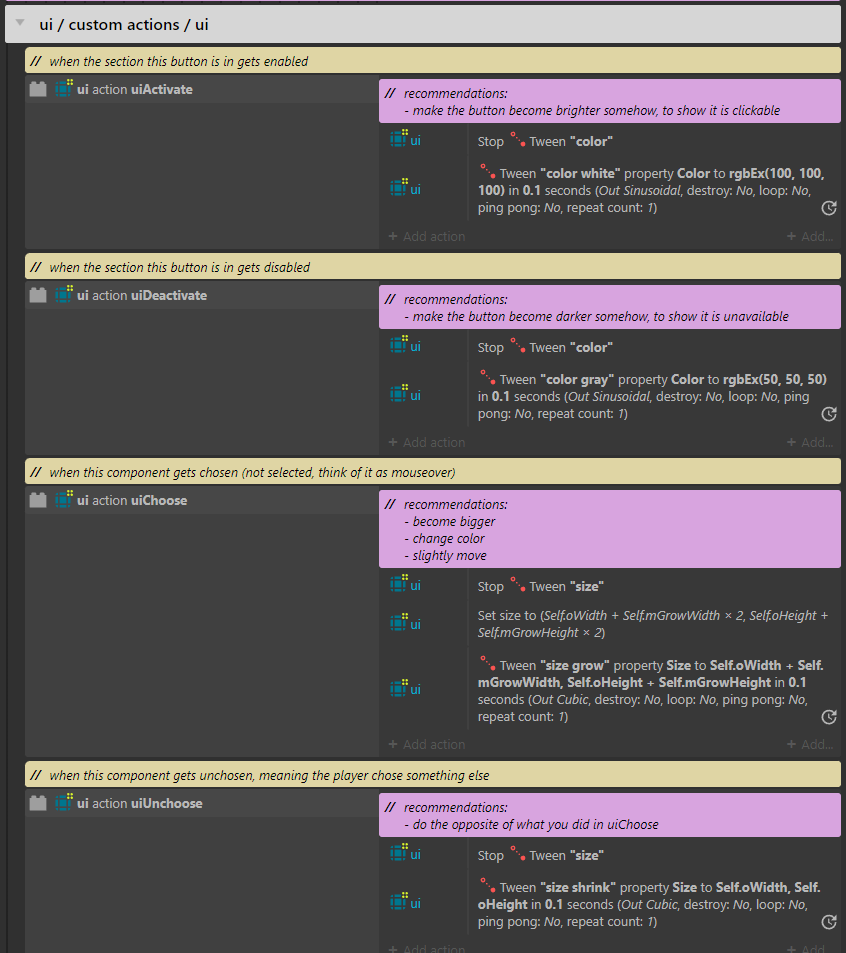
Go to the `uiEV` event sheet, and go to the group `ui / custom actions`.
Since we're working with basic buttons that are part of the `ui` family, go to \
`ui / custom actions / ui`.
You'll find a lot of family custom actions here. The yellow comments tell you what triggers it, while the pink comment will tell you what the custom action could and/or should do.
You can change the tweens here to do whatever you want. Experiment with different eases, durations, colors, sounds, effects... you could make an object appear when you choose a button (`uiChoose`), and disappear when you choose something else (`uiUnchoose`). You could make particles appear when you select a button in `uiSelect`. You can even remove the tweens and just use a simple set size action too.
## Overrides
Let's say you have a special button... one that's different from the rest. It's so important and unique that it can't use the default animations, it's gotta stand out...
Well, we can override the default animation by creating a custom action override.
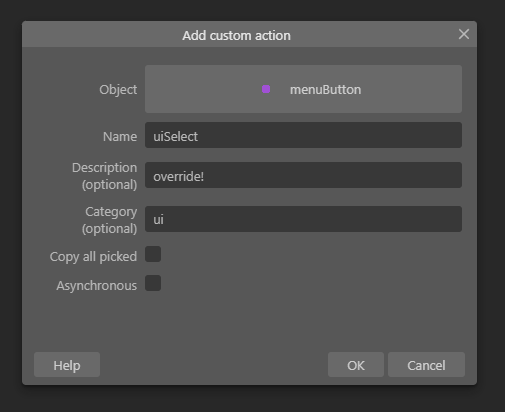
On any event sheet *(usually the one for the layout where the special button is)*, create a new custom action and name it the exact same as the event you want to override.
If you've done it right, it will say "override". Now, when the custom action is triggered, it won't call the default one, it'll call this.
Now, you can make this button do something crazy and special!
However, maybe you want it to do what the default animation is, and *then* do something special afterwards. You could copy the code of the default, but the smart way is to turn this *override* into an *extension*.
Add an action on `menuButton` that calls the default custom action, but be careful here.
When you override a custom action, you actually have the choice between calling the overriden one or the default one. You can tell which is which by the icon and the name of the family written in parenthesis.
If you called `uiSelect (menuButton)`, then you'd just be calling this action, which calls itself, over and over, which will probably freeze your game. Choose the one tied to the family, `uiSelect (ui)`.
Now this object type is *extending* the default behavior.
{% hint style="info" %}
These overrides will apply to every instance of this object type. If you want to affect only one specific instance and no others, you should realistically create a new object type just for that instance.
If that's too inconvenient, another workaround is to go to the surface function for this button being selected, and enable *Copy picked*. Now, you will have the **family instance** picked to manipulate as you want. *(Not the **object instance**)*
{% endhint %}